
Manage a Hytale server in VXPanel
Use this VXPanel walkthrough to find the console, edit files, transfer packages and create backups on your VYKIX Hytale service. For the full planning and server procedure, follow how to make a Hytale server.
For file access, backup inclusions and the host’s responsibilities, compare the managed Hytale hosting plan.
Before players join
Verify authentication in Step 2 and test a join through VXPanel’s assigned address and port, even if the process has started successfully.
1. 📧 Accessing Your Control Panel
Section titled “1. 📧 Accessing Your Control Panel”Find the “Server Created” notification in your email. It supplies the Panel URL, Username and Password.
- Follow the email’s Panel URL.
- Sign in using the supplied credentials.
- Select the server name to open its dashboard.
2. 🔐 REQUIRED: Hytale Login & Server Authentication
Section titled “2. 🔐 REQUIRED: Hytale Login & Server Authentication”Player joins require Hytale server authentication. Use the account holding your game license. The publisher’s authentication guide covers the device-login and credential-storage commands used below.
- Select the Console tab.
- Press the green Start button at the top right.
- Watch the console. Complete a downloader login if the installer requests one, using its current code and link. The captures illustrate that flow; some servers have completed this stage before you open the panel.
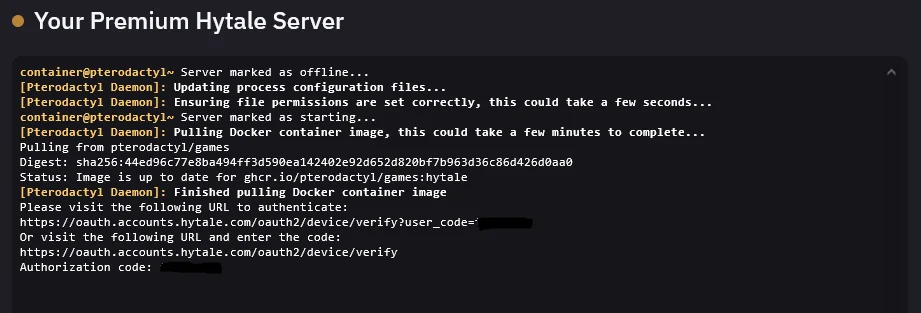
- Follow the console’s Hytale verification page and enter the displayed code. Server-device requests use
https://accounts.hytale.com/device. Sign in to your Hytale account and approve the server request.
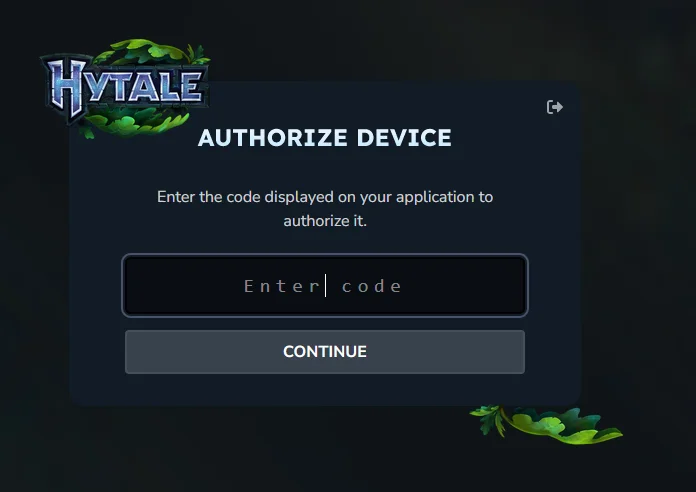
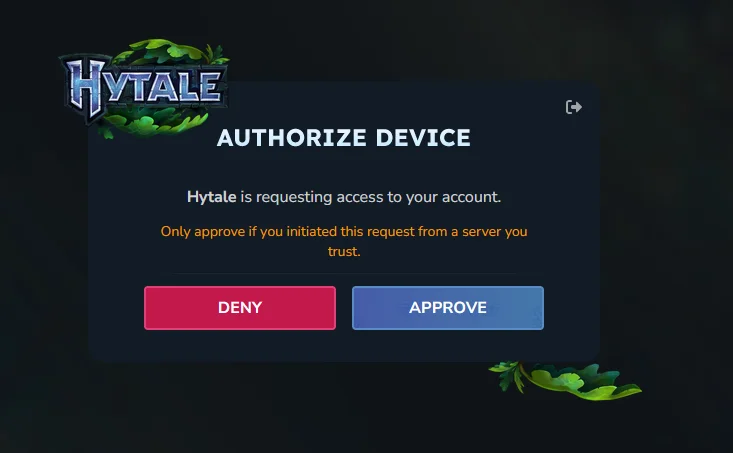
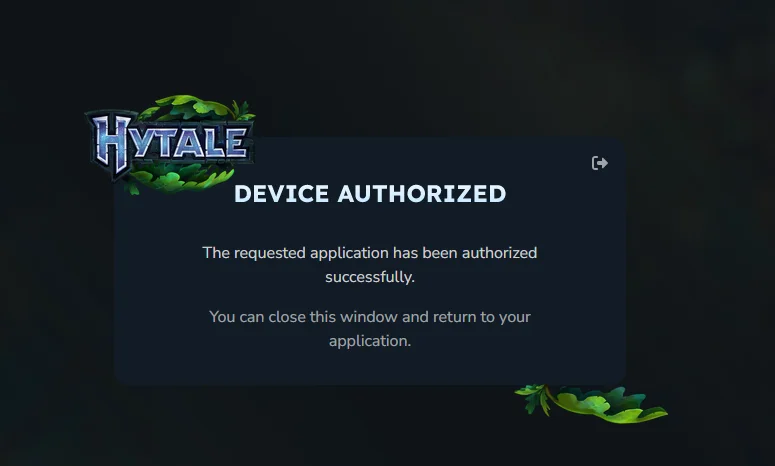
- Continue after the console reports success. Hide device codes and sign-in links in any screenshot you post in public.
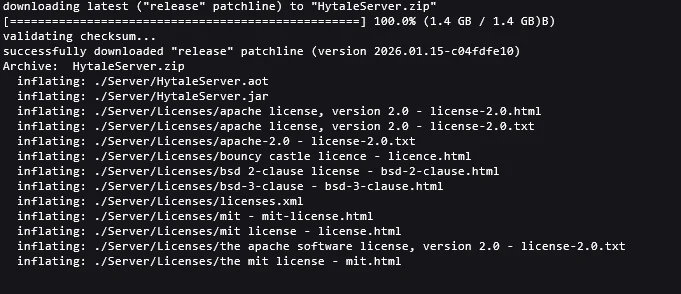
- When the console accepts commands, read
/auth status. If server authentication is required, begin the device flow below. Authorization for file download is separate from the running server’s login. Check status before repeating a stage that has succeeded.

Enter the server-login command in the console:
/auth login device
-
Approve the fresh request in your browser, then read
/auth statusagain. Complete it within the active prompt’s expiry. If it expires, enter/auth login devicefor another code. -
Inspect credential storage with
/auth persistence. AMemorystore loses credentials on process exit. Select the supported encrypted store to keep them across restarts:/auth persistence Encrypted

Check for a successful command result. Send encrypted-storage errors to VYKIX support. Stored credentials can still be revoked or encounter authentication-service failures; complete a fresh login request if the service asks for one.
3. 🖥️ The Console & Power Controls
Section titled “3. 🖥️ The Console & Power Controls”The main dashboard provides the console, connection details and power controls.
- Power Controls: Manage the process with
Start,RestartandStop. UseStopbefore file edits so the world can finish saving. ReserveKillfor a process that will not stop, following support instructions. - The Console: Read live server activity on the black screen. Enter administrative commands in its bottom text bar.
- Connection Info: Take the Server IP and assigned Port from VXPanel. Give players that full endpoint, including any non-default port.
Hytale port and runtime requirements
Section titled “Hytale port and runtime requirements”Hytale game traffic uses QUIC over UDP. The publisher sets 5520 as the default, while managed instances can have a different port assignment. Retain the VXPanel value instead of replacing it with the default.
For a self-hosted installation, the official Hytale Server Manual specifies Java 25 and at least 4 GB of memory. Those minima do not define player capacity. Measure CPU and memory with your own world, mods, view distance and active players. VYKIX maintains the runtime on managed hosting; root-access VPS and dedicated customers maintain their own.
4. ⚙️ Hytale Server Config: Editing config.json
Section titled “4. ⚙️ Hytale Server Config: Editing config.json”Edit settings through File Manager. The server uses config.json, and each world has its own config.json beneath universe/worlds/. Before either edit, back up the world and its configuration.
- Stop the process and let saving finish, then open Files in the left sidebar.
- Locate the server file you need in the listing, such as config.json.
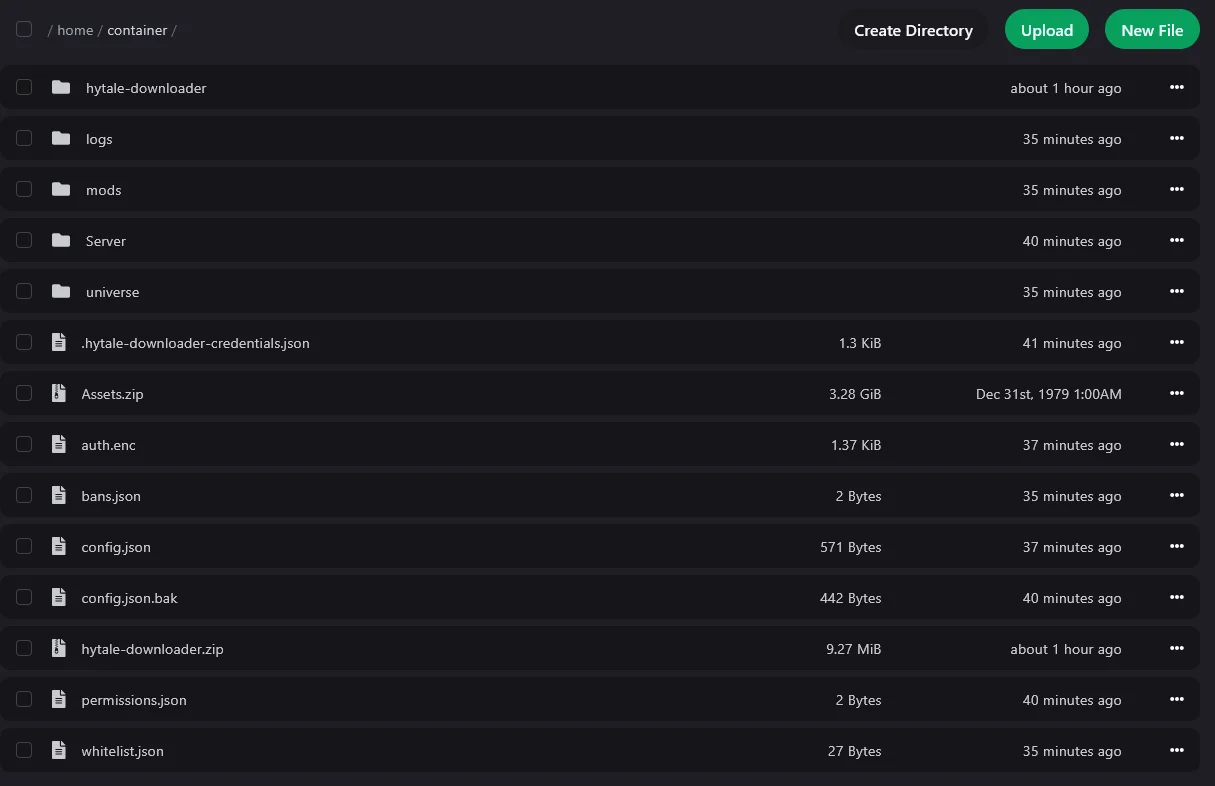
- Change the setting in its owning file and keep the JSON valid. A seed edit does not regenerate a world that exists.
- Use Start, inspect the console for errors and join to test the result.
5. 📂 Managing Files & Plugins
Section titled “5. 📂 Managing Files & Plugins”Game-file access lets you upload mods, plugins and custom scripts.
Place a Hytale mod’s author-supplied .jar or .zip package in mods/. Verify the supported Hytale build and dependencies first. Save a backup, stop the process, upload and start again, then read the mod-loading output. For a missing mod, investigate its path and error before editing world files.
Web Upload (Small files)
Section titled “Web Upload (Small files)”Open File Manager -> Upload and drag in a configuration file or individual plugin.
SFTP (Large files)
Section titled “SFTP (Large files)”Use an SFTP client such as FileZilla for large world or modpack uploads.
- Open Settings for the SFTP Host and Username.
- Authenticate in the SFTP client with your panel password.
6. 🛡️ Creating Backups
Section titled “6. 🛡️ Creating Backups”Create a backup before installing updates or new scripts.
- Open the left-sidebar Backups tab.
- Select Create Backup.
- Use an identifiable name, such as “Before Update v1.0”.
- Wait until the backup completes, then download an external copy. Before selecting Restore in the … menu, stop the process and preserve the current state. Restoring replaces files and may discard progress made after the backup.
🔧 Hytale Login Troubleshooting: “Authentication Failed”
Section titled “🔧 Hytale Login Troubleshooting: “Authentication Failed””For “Auth Failed” or “Invalid Token” during Step 2, check the following:
- Expired device code: Use the expiry displayed in the console. Request another server-login code with
/auth login device; a healthy running server does not need a restart for a new prompt. - Wrong signed-in account: Sign out of the Hytale page or choose the licensed account through a private browser window.
- Authentication still fails: Read
/auth statusand retain the error. Ask support to inspect the request instead of repeating restarts.
👋 Need Help?
Section titled “👋 Need Help?”Contact VYKIX on Discord if setup stops progressing or the service crashes without warning.
Send the error, server name and timestamp. Before sharing console output, remove passwords, tokens, device codes and sign-in URLs that contain codes.
General Hytale tutorials
Section titled “General Hytale tutorials”For connection errors, follow the authentication and UDP checks. For maintenance, use the Hytale update guide. Keep the change record with your build, authentication and mod-test results.